Negative & Positive Spacing | Resource Pack Tool
Posted: November 28th, 2020, 8:18 pm
As we get more and more into 1.16's newest font features, I've written a quick script for creating negative and positive spacing from just a procedure script!
Instructions
At the time of writing this, the Resource Packs section of our guide does not presently cover how to utilize negative spacing or custom font features that were implemented.
It'll be there soon enough!
Until then, you can find a helpful video guide on how to configure the files properly here:
Here's a haste of the script: https://one.denizenscript.com/haste/78244
You can find the download for the negative spacing font on GitHub with credit to AmberWat/NegativeSpaceFont for allowing us to use this within our resource packs for most use.
This file goes into your resource pack under the directory:
where
If you place this within the
Inside your
where the
If you don't use the default minecraft directory, and the default font file
-
-
Examples
Some examples of this script's usage are for simplifying and debugging your script for calculating easily through trial and error the amount of pixels you need to offset for.
For example, instead of this:
you can simply just use this:
If you have two font images side-by-side that are
Likewise for positive spacing, raw spaces such as
Using the positive spacing procedure script, you can specify the other three pixels using this for example:
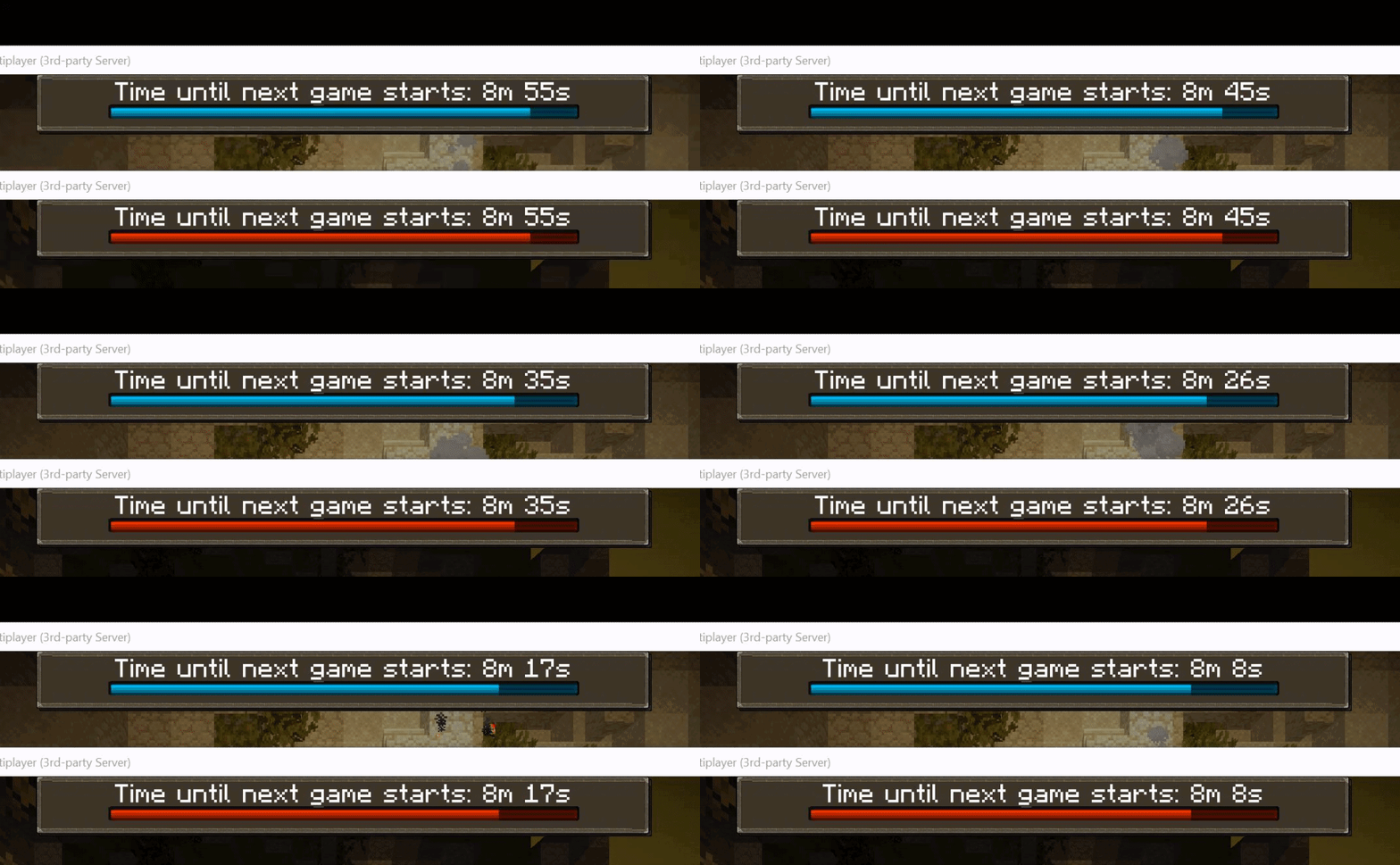
Here's a showcase of some usage of the negative and positive spacing system to create interesting overlays for text on-top of images!
Notes
Note that for best performance, this is best for quickly debugging via /ex commands or quick modifications to scripts to test spacing outcomes with different spacing.
I suggest saving it as a flag and using the flag directly for consistent usage to avoid re-parsing the entire script.
Instructions
At the time of writing this, the Resource Packs section of our guide does not presently cover how to utilize negative spacing or custom font features that were implemented.
It'll be there soon enough!
Until then, you can find a helpful video guide on how to configure the files properly here:
Spoiler!
You can find the download for the negative spacing font on GitHub with credit to AmberWat/NegativeSpaceFont for allowing us to use this within our resource packs for most use.
This file goes into your resource pack under the directory:
assets/{subfolder}/font/{file_name}.jsonwhere
subfolder is the directory that you decide to use this within.If you place this within the
assets/minecraft/font directory, you won't have to specify font tags to create the negative spacing.Inside your
{file_name}.json file, you must specify this provider:
Spoiler!
subfolder is your subfolder you pick, and file_name is the name of the .tff font file that you place in the resource pack.If you don't use the default minecraft directory, and the default font file
default.json, you use the font tags:-
<&font[subfolder:file_name]><proc[negative_spacing].context[#]>...-
<proc[negative_spacing].context[#].font[subfolder:file_name]>...Examples
Some examples of this script's usage are for simplifying and debugging your script for calculating easily through trial and error the amount of pixels you need to offset for.
For example, instead of this:
<&chr[F80D]><&chr[F80C]><&chr[F80C]><&chr[F80C]><&chr[F80B]><&chr[F80A]><&chr[F808]>you can simply just use this:
<proc[negative_spacing].context[1000]>If you have two font images side-by-side that are
200x in width, you can display your images, and then use a tag such as <proc[negative_spacing].context[400]> directly after your images to display text overlaying the images! Likewise for positive spacing, raw spaces such as
and <&sp> both equate to 4 pixels wide. Using the positive spacing procedure script, you can specify the other three pixels using this for example:
<proc[positive_spacing].context[21]> for 21 pixels in width positively spacedHere's a showcase of some usage of the negative and positive spacing system to create interesting overlays for text on-top of images!
Spoiler!


Notes
Note that for best performance, this is best for quickly debugging via /ex commands or quick modifications to scripts to test spacing outcomes with different spacing.
I suggest saving it as a flag and using the flag directly for consistent usage to avoid re-parsing the entire script.